Day 2: Users, Groups, Roles
Goal: Create roles for notes, assign them through groups instead of individually, set up two users, one of them required to change their password, and read off a user’s effective roles. · Duration: approx. 60 min · Prerequisite: Day 1
Briefing
- Realm roles apply to the whole realm, client roles only to one client (Day 5). A composite role contains other roles.
- Groups bundle roles. Whoever is in the group has its roles; you maintain the mapping in one place instead of on every user.
- Every new user gets
default-roles-lab; it containsoffline_accessanduma_authorization. - Required actions force users to do something at their next login, such as changing their password.
 Group team-notes ─► notes-lesen, notes-schreiben ─► anna
 Group leser      ─► notes-lesen                  ─► ben
 notes-admin (composite) = notes-lesen + notes-schreiben
Drill 1: Roles for notes
source ~/kc-lab/setup/env.sh
mkdir -p ~/kc-lab/tag02 && cd ~/kc-lab/tag02
kclogin
kcadm create roles -r lab -s name=notes-lesen -s 'description=Notizen lesen'
kcadm create roles -r lab -s name=notes-schreiben -s 'description=Notizen anlegen'
kcadm create roles -r lab -s name=notes-admin -s 'description=alles an notes'
kcadm add-roles -r lab --rname notes-admin --rolename notes-lesen \
  --rolename notes-schreiben
kcadm get roles -r lab --fields name,composite --format csv --noquotes | sort
Expected:
Logging into http://localhost:8080 as user kcadmin of realm master
Created new role with id 'notes-lesen'
Created new role with id 'notes-schreiben'
Created new role with id 'notes-admin'
default-roles-lab,true
notes-admin,true
notes-lesen,false
notes-schreiben,false
offline_access,false
uma_authorization,false
From today on, kclogin comes at the start of every day:
The kcadm login expires after a while, and then every call
reports Session has expired. add-roles with
--rname turns notes-admin into a composite
role of notes-lesen (read notes) and
notes-schreiben (write notes).
default-roles-lab is one as well: Every new user of the
realm gets it.
Save your progress? Sign up for free
Drill 2: Groups
kcadm create groups -r lab -s name=team-notes
kcadm create groups -r lab -s name=leser
kcadm add-roles -r lab --gname team-notes --rolename notes-schreiben \
  --rolename notes-lesen
kcadm add-roles -r lab --gname leser --rolename notes-lesen
kcadm get-roles -r lab --gname team-notes --fields name --format csv --noquotes | sort
Expected (abridged, IDs will differ on your machine):
Created new group with id '5e9ade29-…'
Created new group with id '3ee38214-…'
notes-lesen
notes-schreiben
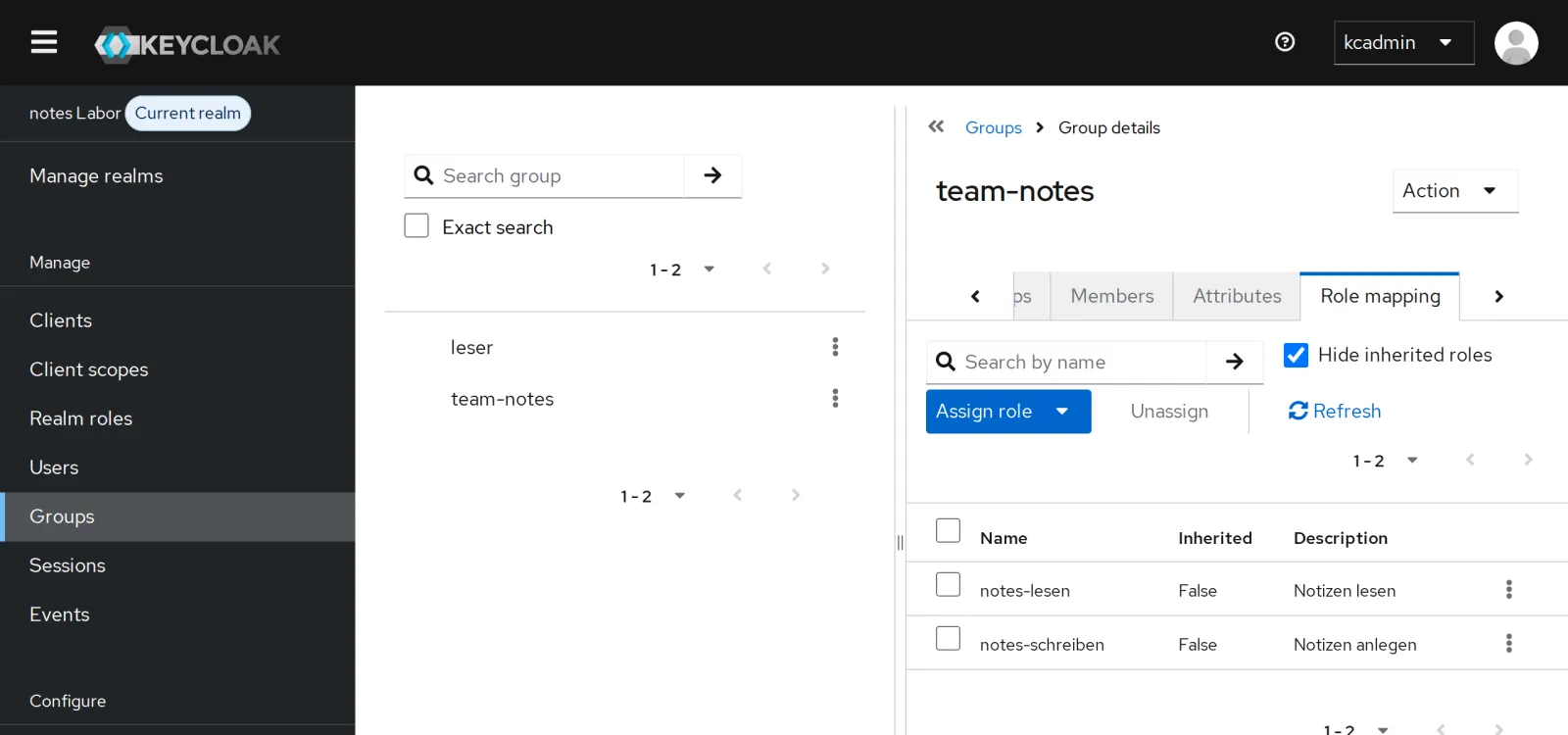
In the console under Groups, team-notes, Role mapping you see the same thing:
Save your progress? Sign up for free
Drill 3: Two Users
kcadm create users -r lab -s username=anna -s enabled=true -s [email protected] \
  -s emailVerified=true -s firstName=Anna -s lastName=Lab
kcadm set-password -r lab --username anna --new-password lab-user-pw-123
kcadm create users -r lab -s username=ben -s enabled=true -s [email protected] \
  -s emailVerified=true -s firstName=Ben -s lastName=Lab
kcadm set-password -r lab --username ben --new-password lab-temp-pw-123 --temporary
kcadm get users -r lab -q username=ben -q exact=true --fields username,requiredActions
Expected (abridged):
Created new user with id '67459ac2-…'
Created new user with id 'eaec63a6-…'
[ {
  "username" : "ben",
  "requiredActions" : [ "UPDATE_PASSWORD" ]
} ]
ben’s password is temporary. --temporary sets the
required action UPDATE_PASSWORD.
Save your progress? Sign up for free
Drill 4: Members and Effective Roles
Groups and users are linked through their IDs. Two small helper functions fetch them:
gid() { kcadm get groups -r lab -q search=$1 --fields id --format csv --noquotes \
  | head -1; }
uid() { kcadm get users -r lab -q username=$1 -q exact=true --fields id \
  --format csv --noquotes; }
kcadm update users/$(uid anna)/groups/$(gid team-notes) -r lab -n
kcadm update users/$(uid ben)/groups/$(gid leser) -r lab -n
kcadm get-roles -r lab --uusername anna --fields name --format csv --noquotes
kcadm get-roles -r lab --uusername anna --effective --fields name --format csv \
  --noquotes | sort
Expected:
default-roles-lab
default-roles-lab
notes-lesen
notes-schreiben
offline_access
uma_authorization
anna is directly assigned only default-roles-lab. Only
--effective shows everything she actually has through
groups and composite roles. Exactly this list ends up in the token later
(Day 3).
Save your progress? Sign up for free
Drill 5: The Account Console
Every user manages themselves at
http://kc.<IP>.sslip.io:8080/realms/lab/account. Log
in in the browser as anna with
lab-user-pw-123:
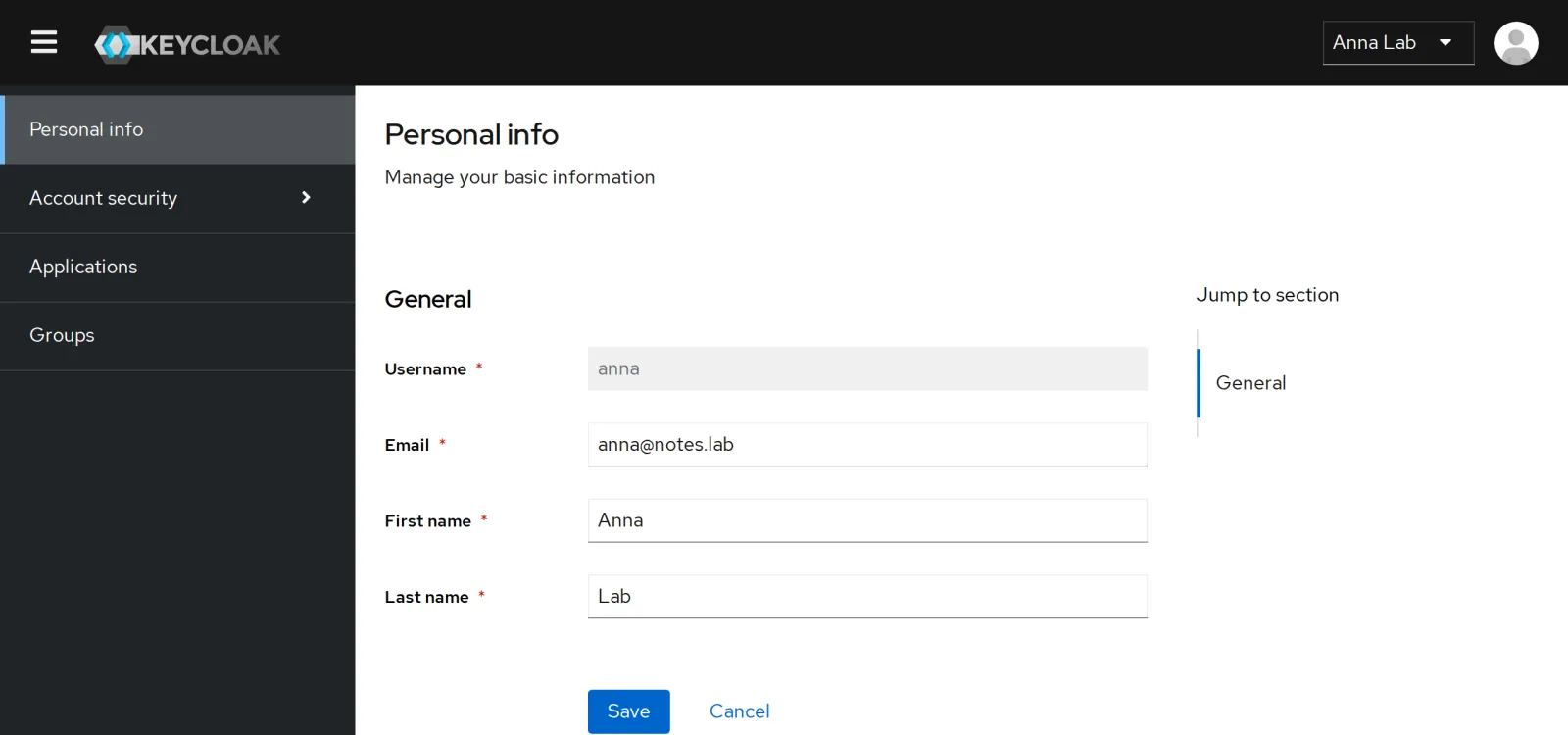
Under Groups you see team-notes; under
Account security she can change her password and later
set up MFA (Day 10). Sign out at the top right.
Save your progress? Sign up for free
Drill 6: First Login with a Required Action
Now log in as ben with lab-temp-pw-123.
Keycloak won’t let him in before he has set his own password:
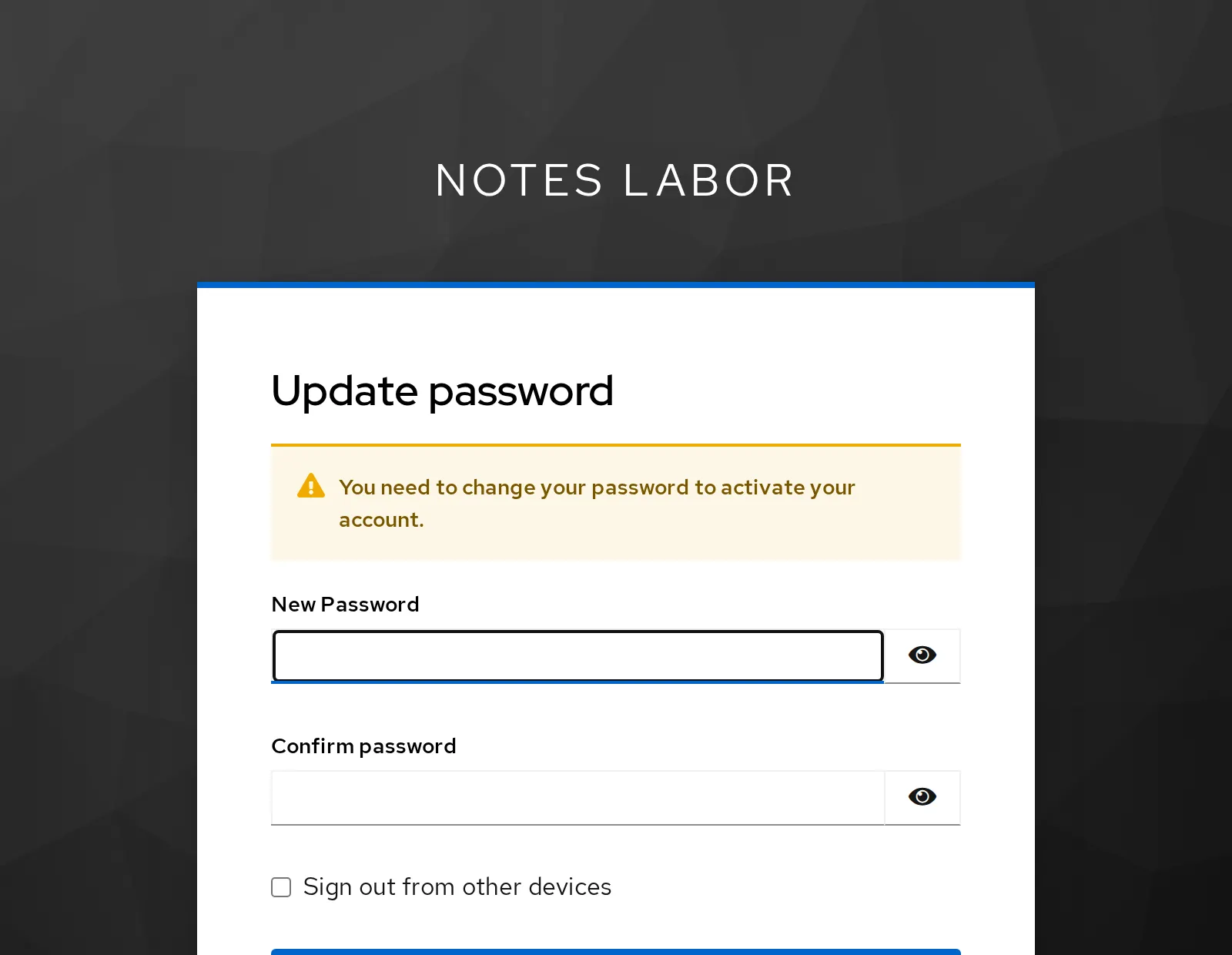
Set lab-user-pw-456 and save. Then:
kcadm get users -r lab -q username=ben -q exact=true --fields username,requiredActionsExpected:
[ {
  "username" : "ben",
  "requiredActions" : [ ]
} ]
The required action is fulfilled and gone. At the top you see the realm’s display name from Day 1, “notes Labor”, in capital letters: That is the default theme; your own comes on Day 11.
Save your progress? Sign up for free
Checkpoint
kcadm get users -r lab --fields username --format csv --noquotesExpected: two users.
anna
ben
kcadm get-roles -r lab --uusername ben --effective --fields name --format csv \
--noquotes | grep notesExpected: ben may only read.
notes-lesenkcadm get users/$(uid anna)/groups -r lab --fields name --format csv --noquotesExpected: anna is in the team.
team-notesChallenge
For one week, ben should also be allowed to write, without joining the team. Give him the role directly, check his effective roles and take it away again.
Hint: kcadm add-roles and
kcadm remove-roles also work with
--uusername.
Solution
kcadm add-roles -r lab --uusername ben --rolename notes-schreiben
kcadm get-roles -r lab --uusername ben --effective --fields name --format csv \
--noquotes | grep notes | sort
kcadm remove-roles -r lab --uusername ben --rolename notes-schreiben
kcadm get-roles -r lab --uusername ben --effective --fields name --format csv \
--noquotes | grep notesExpected:
notes-lesen
notes-schreiben
notes-lesen
Direct roles are quickly assigned and quickly forgotten. Whoever asks in a year why ben may write finds the answer with groups, but rarely with direct assignments.
Save your progress? Sign up for free
Enterprise Note
- Roles through groups, groups from the directory (Day 8): That way Keycloak mirrors the organization instead of rebuilding it.
- Fine-grained: Keycloak can grant admin rights per realm, client or group (fine-grained admin permissions), for example “team leads manage only their own group”.
- Lifecycle: Users who leave the company must be disabled quickly. With LDAP or an identity provider, that happens in one place.
- Profiles: The user profile defines which attributes exist, who sees them and who changes them (Day 11).