Day 10: MFA, Password Policies, Brute Force Protection
Goal: Define password rules for the realm, set up a second factor with TOTP and test it without a phone, reset a lost device and slow down attacks on passwords. · Duration: approx. 75 min · Prerequisite: Day 9
Briefing
- A password policy applies to the whole realm: length, character classes, no reuse of old passwords. It takes effect when a password is set, not retroactively.
- TOTP (time-based one-time password, RFC 6238)
derives a six-digit code from a shared secret and the time every 30
seconds. An authenticator app computes it – or
oathtoolon the command line. - Required actions are tasks a user must complete at the next login: set up OTP, change password, verify email.
- Brute force protection locks an account for a while after too many failed attempts. From the outside, the attacker sees no difference.
 Login otto ─► Password ✓ ─► OTP code ✓ ─► Token
                   │              └ secret in the account, code from app or oathtool
                   └ 3 × wrong ──► account temporarily locked
Drill 1: Rules for Passwords
source ~/kc-lab/setup/env.sh
mkdir -p ~/kc-lab/tag10
kclogin
kcadm update realms/lab \
  -s 'passwordPolicy="length(12) and notUsername and notEmail and passwordHistory(3)"'
kcadm get realms/lab --fields passwordPolicy
Expected:
Logging into http://localhost:8080 as user kcadmin of realm master
{
  "passwordPolicy" : "length(12) and notUsername and notEmail and passwordHistory(3)"
}
The rules are on one line, joined with and. In the
console you find them under Authentication →
Policies → Password policy. Now a new
user, otto:
kcadm create users -r lab -s username=otto -s enabled=true -s [email protected] \
  -s emailVerified=true -s firstName=Otto -s lastName=Otp
kcadm set-password -r lab --username otto --new-password otto123
kcadm set-password -r lab --username otto --new-password [email protected]
kcadm set-password -r lab --username otto --new-password lab-user-pw-otto \
  && echo gesetzt
Expected:
Created new user with id '…'
Invalid password: minimum length 12. [invalidPasswordMinLengthMessage]
Invalid password: must not be equal to the email. [invalidPasswordNotEmailMessage]
gesetzt
Keycloak reports the first violated rule with a key in square brackets. The translated text on the login page is stored under this key.
Save your progress? Sign up for free
Drill 2: Old Passwords Are Used Up
kcadm set-password -r lab --username otto --new-password lab-user-pw-otto-2
kcadm set-password -r lab --username otto --new-password lab-user-pw-otto
Expected:
Invalid password: must not be equal to any of last 3 passwords. [invalidPassword…]The first command succeeds silently – otto now has
lab-user-pw-otto-2. The second fails:
passwordHistory(3) remembers the last three passwords. The
policy does not re-check existing passwords like anna’s – they stay
valid until someone changes them. The rule applies to all paths: Admin
API, account console and login page.
Save your progress? Sign up for free
Drill 3: Setting Up OTP
otto should set up a second factor at the next login. That is the
required action CONFIGURE_TOTP:
uid() { kcadm get users -r lab -q username=$1 -q exact=true --fields id \
  --format csv --noquotes; }
OID=$(uid otto)
kcadm update users/$OID -r lab -s 'requiredActions=["CONFIGURE_TOTP"]'
kcadm get realms/lab \
  --fields otpPolicyType,otpPolicyAlgorithm,otpPolicyDigits,otpPolicyPeriod
echo "$KC_URL/realms/lab/account"
Expected:
{
  "otpPolicyType" : "totp",
  "otpPolicyAlgorithm" : "HmacSHA1",
  "otpPolicyDigits" : 6,
  "otpPolicyPeriod" : 30
}
http://kc.192.168.64.5.sslip.io:8080/realms/lab/account
Open the address in the browser and log in as otto with
lab-user-pw-otto-2. Instead of the account console,
Keycloak shows the Mobile Authenticator Setup page with
a QR code.
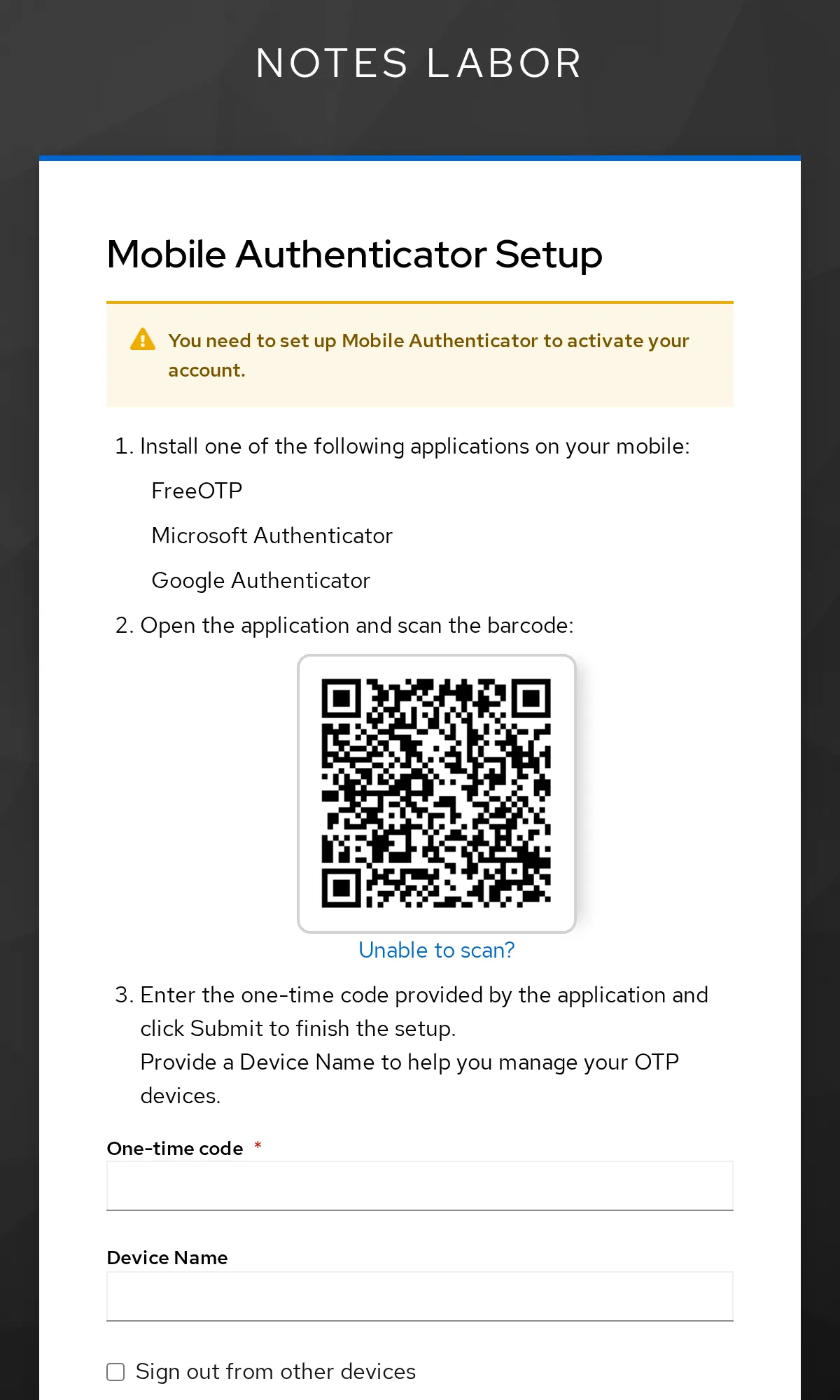
With a phone, you scan the code with FreeOTP, Google or Microsoft
Authenticator. We use oathtool: Click Unable to
scan?, and the secret appears in plain text.
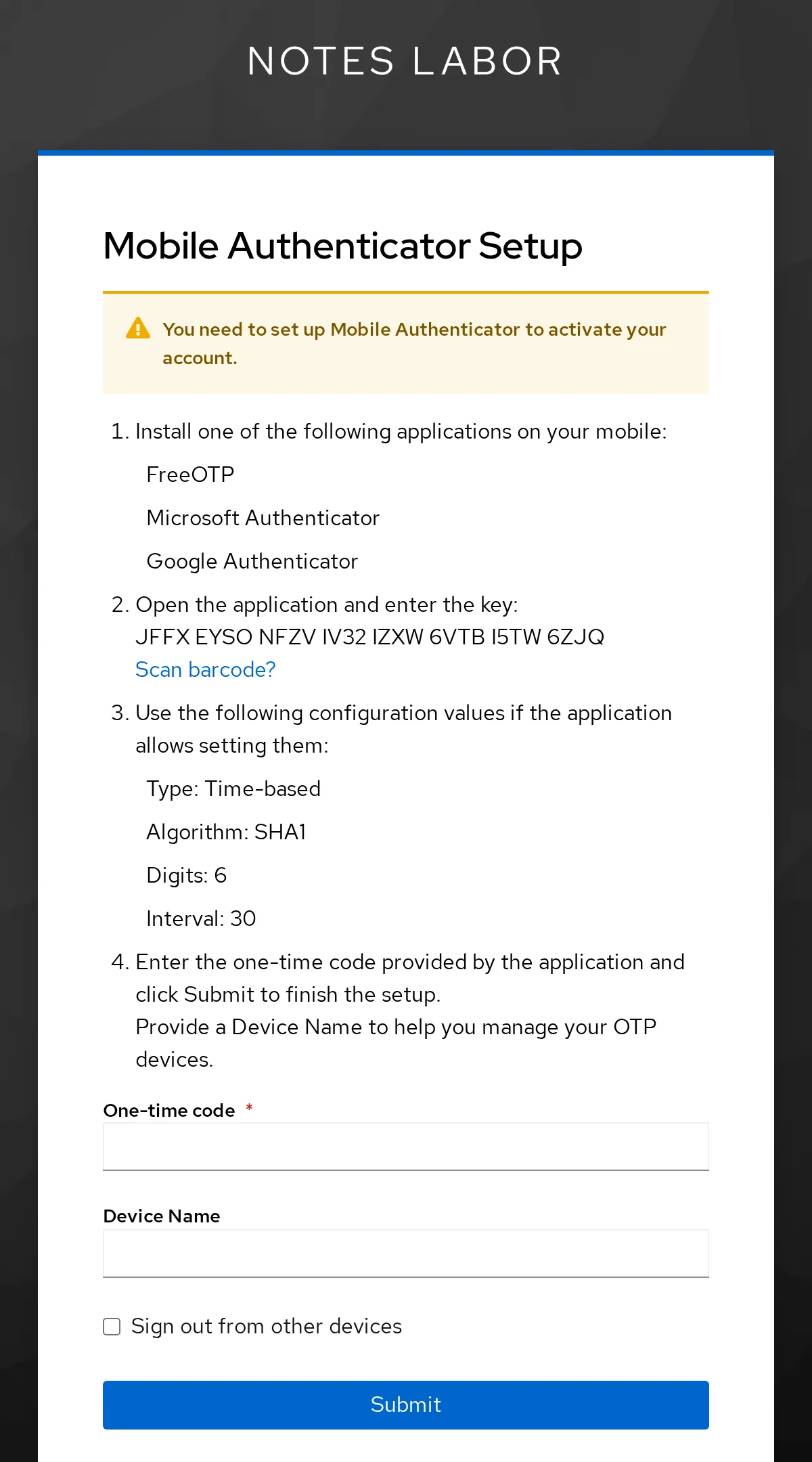
Copy the secret into a variable on the VM and have the current code computed:
sudo apt-get install -y oathtool >/dev/null
SECRET='JFFX EYSO NFZV IV32 IZXW 6VTB I5TW 6ZJQ'    # your secret from the browser
SECRET=${SECRET// /}
oathtool --totp -b "$SECRET"
Expected (your code will be different):
933140Enter the code under One-time code,
oathtool as Device Name, and click
Submit. You land in the account console. otto’s
credentials:
kcadm get users/$OID/credentials -r lab \
  | jq -r '.[] | [.type, .userLabel // "-"] | @tsv'
Expected:
password    -
password-history    -
otp oathtool
password-history holds the hashes of the old passwords
for passwordHistory(3). The second factor is a credential
type of its own, otp, with the device name as its
label.
Save your progress? Sign up for free
Drill 4: Login with Two Factors
Sign out of the account console (top right, Sign out) and log in again as otto. After the password, Keycloak now asks for the code.
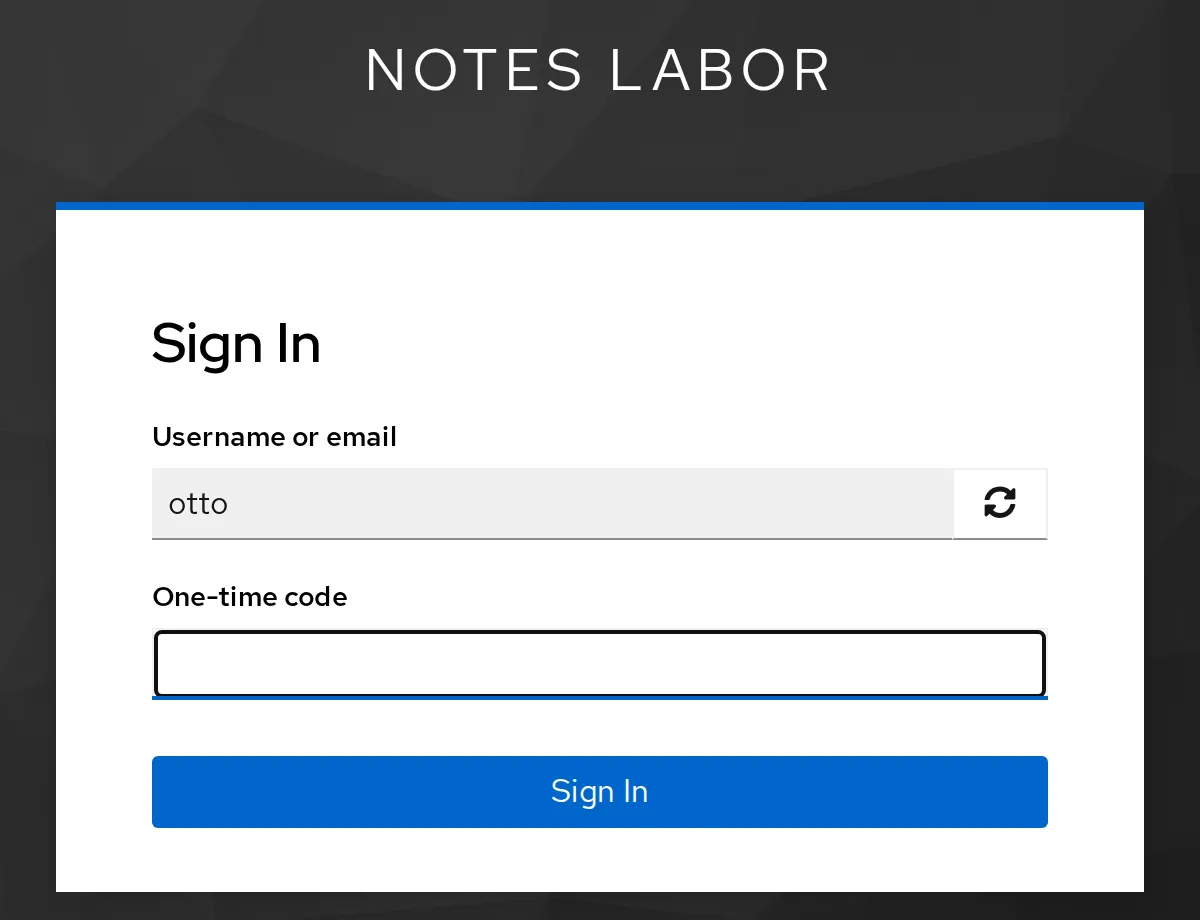
sleep $((31 - $(date +%s) % 30))
oathtool --totp -b "$SECRET"
The sleep waits for the next 30-second window. The
reason: A code is valid only once (otpPolicyCodeReusable is
false). If you just used it during setup, Keycloak rejects
it within the same window. Enter the new code – you’re in.
The password grant from Day 3 knows the second factor too – as the
parameter totp:
otto() { curl -s -d grant_type=password -d client_id=notes-cli \
  -d client_secret=lab-client-secret-123 -d username=otto \
  -d password=lab-user-pw-otto-2 "$@" $KC_URL/realms/lab/protocol/openid-connect/token \
  | jq -c '{error_description, ok: (.access_token != null)}'; }
otto
sleep $((31 - $(date +%s) % 30))
otto -d totp=$(oathtool --totp -b "$SECRET")
Expected:
{"error_description":"Invalid user credentials","ok":false}
{"error_description":null,"ok":true}
No code, no token. The error message does not reveal whether the password or the code was missing.
Save your progress? Sign up for free
Drill 5: The Phone Is Gone
otto has lost his phone. The admin deletes the OTP credential and requires a new setup:
CID=$(kcadm get users/$OID/credentials -r lab \
  | jq -r '.[] | select(.type=="otp") | .id')
kcadm delete users/$OID/credentials/$CID -r lab
kcadm update users/$OID -r lab -s 'requiredActions=["CONFIGURE_TOTP"]'
kcadm get users/$OID/credentials -r lab | jq -r '.[].type'
otto
Expected:
password
password-history
{"error_description":"Account is not fully set up","ok":false}
As long as a required action is pending, the password grant issues no
token – the task can only be completed in the browser. In the console,
you find both on otto under Credentials and
Required user actions. Log in as otto in the browser
once more, set up OTP with the new secret and store it in
SECRET again:
SECRET='…'          # new secret from the browser
SECRET=${SECRET// /}
sleep $((31 - $(date +%s) % 30))
otto -d totp=$(oathtool --totp -b "$SECRET")
Expected:
{"error_description":null,"ok":true}Save your progress? Sign up for free
Drill 6: Slowing Down Attacks
If the work in the browser took longer than 30 minutes, the
kcadm session has expired (“Session has expired”). So log
in again first:
kclogin
kcadm update realms/lab -s bruteForceProtected=true -s failureFactor=3 \
  -s waitIncrementSeconds=60 -s maxFailureWaitSeconds=900
kcadm get realms/lab --fields bruteForceProtected,failureFactor,waitIncrementSeconds
ben() { curl -s -d grant_type=password -d client_id=notes-cli \
  -d client_secret=lab-client-secret-123 -d username=ben -d password=$1 \
  $KC_URL/realms/lab/protocol/openid-connect/token \
  | jq -c '{error_description, ok: (.access_token != null)}'; }
for i in 1 2 3; do ben falsch; done
ben lab-user-pw-456
Expected:
{
  "bruteForceProtected" : true,
  "waitIncrementSeconds" : 60,
  "failureFactor" : 3
}
{"error_description":"Invalid user credentials","ok":false}
{"error_description":"Invalid user credentials","ok":false}
{"error_description":"Invalid user credentials","ok":false}
{"error_description":"Invalid user credentials","ok":false}
After three failed attempts, even the correct password fails – with the same message. That way an attacker does not learn that they have locked an account. The lockout first lasts 60 seconds and grows with further failed attempts up to 15 minutes. The admin sees the reason:
BID=$(uid ben)
kcadm get attack-detection/brute-force/users/$BID -r lab \
  | jq -c '{disabled, lastIPFailure}'
docker compose -f ~/kc-lab/keycloak/compose.yaml logs keycloak --since 5m \
  | grep -o 'ipAddress=.*user_temporarily_disabled' | head -1
Expected:
{"disabled":true,"lastIPFailure":"192.168.64.5"}
ipAddress="192.168.64.5", error="user_temporarily_disabled
Unlock without waiting for the minute:
kcadm delete attack-detection/brute-force/users/$BID -r lab && echo entsperrt
ben lab-user-pw-456
Expected:
entsperrt
{"error_description":null,"ok":true}
Save your progress? Sign up for free
Checkpoint
kcadm get realms/lab --fields passwordPolicy,bruteForceProtectedExpected: Policy and brute force protection are active.
{
  "bruteForceProtected" : true,
  "passwordPolicy" : "length(12) and notUsername and notEmail and passwordHistory(3)"
}
kcadm get users/$OID/credentials -r lab | jq -r '.[].type'Expected: otto has a password, old passwords and a second factor.
password
password-history
otp
kcadm get users/$OID -r lab | jq -c .requiredActionsExpected: no pending task.
[]ben lab-user-pw-456Expected: ben is not locked.
{"error_description":null,"ok":true}Challenge
ben should change his password at the next login. Set the matching required action and show that the password grant no longer works for ben afterwards. Then clean up again.
Hint: The required action is called
UPDATE_PASSWORD.
Solution
kcadm update users/$BID -r lab -s 'requiredActions=["UPDATE_PASSWORD"]'
ben lab-user-pw-456
kcadm update users/$BID -r lab -s 'requiredActions=[]'
ben lab-user-pw-456
Expected:
{"error_description":"Account is not fully set up","ok":false}
{"error_description":null,"ok":true}
In the browser, ben would have had to enter the new password right after logging in – and the policy from Drill 1 would have checked it.
Save your progress? Sign up for free
Enterprise Note
- OTP for everyone: Under Authentication → Required actions you can mark Configure OTP as Default action; then every new user sets up the second factor. For individual groups, that works with a flow of your own (Day 11).
- Passkeys and WebAuthn are stronger than TOTP and cannot be phished. The browser allows them only in a secure context, that is, with HTTPS – that comes on Day 12.
- Policies at the source: For users from LDAP or AD, the directory’s rules apply as well. An AD rejects weak passwords itself.
- Tuning brute force protection: Thresholds that are
too low lock out real users and invite denial of service. Common are 5
to 10 attempts and a short, growing wait time instead of
permanentLockout. - Events: Under Realm settings → Events, Keycloak stores login events in the database – the basis for alerts on many failed attempts.