
Day 6: Graphical User Interfaces
Goal: Run Headlamp in the cluster and sign in with a read-only account, start Headlamp locally with a kubeconfig, choose the permissions behind a UI deliberately, and place Freelens as a desktop alternative · Duration: approx. 70 min · Prerequisite: Day 5
Briefing
- A web UI makes the cluster visible to people who do not type kubectl every day: developers, support, business departments. It shows the same objects as kubectl, just as pages, diagrams and forms.
- The Kubernetes Dashboard was the standard answer for a long time. The project has been archived since January 2026 and is no longer maintained. In the archive notice, the maintainers themselves recommend Headlamp, which now lives under Kubernetes SIG UI.
- Headlamp runs in two ways: in the cluster as a Deployment with sign-in by token, or outside the cluster with a kubeconfig (as a container or desktop app).
- Freelens is a desktop app (Electron) for Linux, macOS and Windows, a free successor to OpenLens. It reads your kubeconfig like kubectl.
- The most important rule of the day: A UI has exactly the permissions of the account it talks with. If you feed Headlamp a cluster-admin token, you have an admin tool in the browser.
| Tool | Runs as | Sign-in | Status |
|---|---|---|---|
| Headlamp in the cluster | Deployment + Service | token in the browser | v0.46.0, active |
| Headlamp with kubeconfig | container or desktop app | credentials from the kubeconfig | v0.46.0, active |
| Freelens | desktop app | kubeconfig | v2.1.0, active |
| Kubernetes Dashboard | Deployment | token | archived |
Drill 1: Headlamp in the Cluster
helm repo add headlamp https://kubernetes-sigs.github.io/headlamp/
helm repo update headlamp
helm search repo headlamp/headlamp
Expected:
NAME                CHART VERSION   APP VERSION DESCRIPTION
headlamp/headlamp   0.46.0          0.46.0      Headlamp is an easy-to-use and extensible Kuber...
helm install headlamp headlamp/headlamp -n headlamp --create-namespace --version 0.46.0
kubectl -n headlamp rollout status deploy/headlamp --timeout=180s
kubectl -n headlamp get pods,svcExpected:
deployment "headlamp" successfully rolled out
NAME                            READY   STATUS    RESTARTS   AGE
pod/headlamp-86c49cb4f4-tpmhw   1/1     Running   0          22s

NAME               TYPE        CLUSTER-IP     EXTERNAL-IP   PORT(S)   AGE
service/headlamp   ClusterIP   10.96.32.107   <none>        80/TCP    22s
Before you sign in, check what the chart has created on the side:
kubectl get clusterrolebinding -o wide | grep -i headlamp
kubectl auth can-i "*" "*" --as=system:serviceaccount:headlamp:headlamp
Expected:
headlamp-admin   ClusterRole/cluster-admin   32s   headlamp/headlamp
yes
The chart binds its own ServiceAccount headlamp to
cluster-admin. The notes after installation suggest
creating a token for exactly this account
(kubectl create token headlamp). That is convenient and
harmless in the lab. In a real cluster, anyone who copies this token
would get all permissions. That is why you sign in with your own account
that may only read, betrachter (viewer).
kubectl -n headlamp create serviceaccount betrachter
kubectl create clusterrolebinding betrachter-view --clusterrole=view --serviceaccount=headlamp:betrachter
kubectl -n headlamp create token betrachter --duration=2h
The last line prints a long token (eyJhbGciOi…). Copy
it.
Headlamp only has a ClusterIP Service. A port forward makes it reachable:
kubectl -n headlamp port-forward --address 0.0.0.0 svc/headlamp 8080:80Caution:
--address 0.0.0.0opens the port to everyone who can reach the VM. This is meant for a lab network. If your lab runs in the cloud, use an SSH tunnel instead (ssh -L 8080:127.0.0.1:8080 …) and leave out--address.
Open http://<VM-IP>:8080 in the browser. Headlamp
asks for the token:
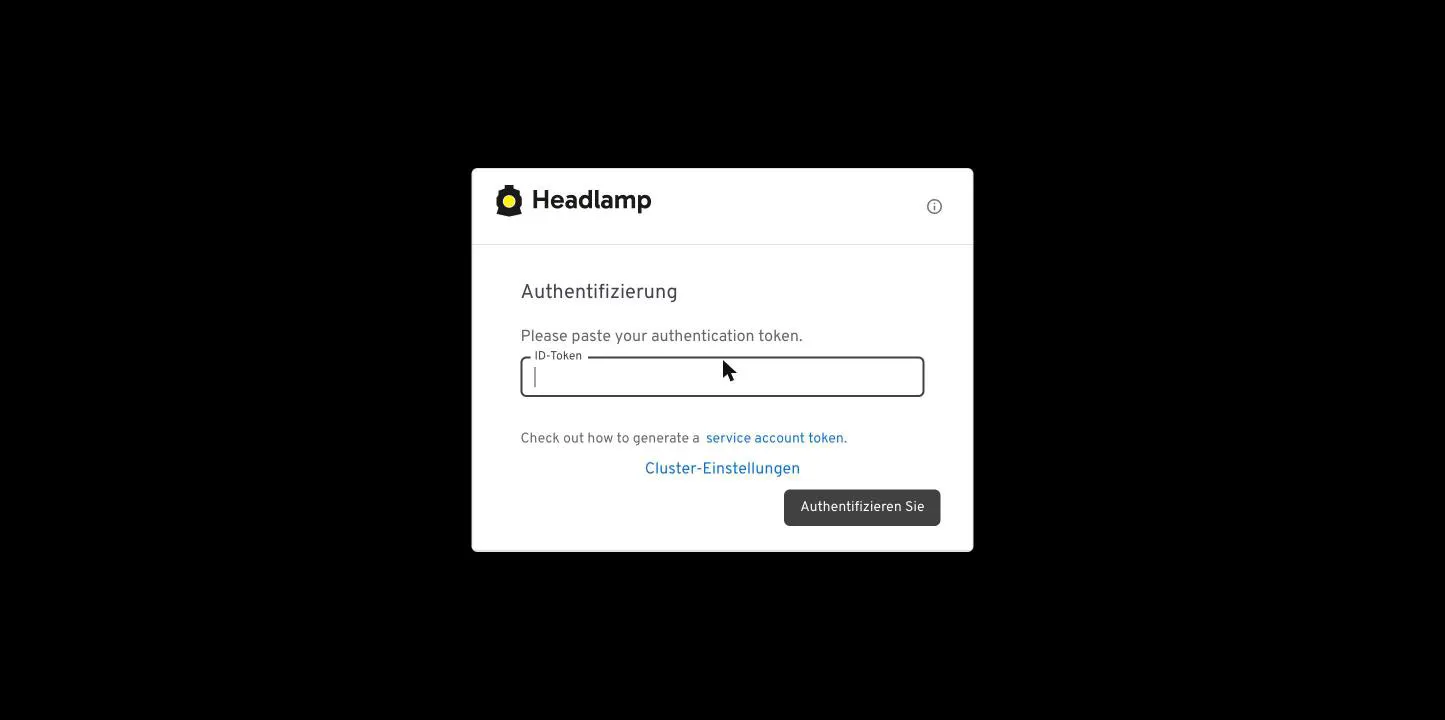
Paste the token of betrachter and click
Authenticate (in the German UI of the screenshot:
“Authentifizieren”). Headlamp stores the token only in the browser.
Every request to the API server runs with this token, not with the
ServiceAccount of the Headlamp Pod.
Save your progress? Sign up for free
Drill 2: Headlamp with kubeconfig
Copying a token into a browser field is fine for a test. For everyday
use, a kubeconfig is more practical: Headlamp reads it like kubectl and
needs no sign-in form. You build a kubeconfig for
betrachter, using the same technique as in the Challenge of
Day 3.
mkdir -p ~/werkzeuge/tag06 && cd ~/werkzeuge/tag06
SERVER=$(kubectl config view --minify -o jsonpath="{.clusters[0].cluster.server}")
kubectl config view --minify --raw -o jsonpath="{.clusters[0].cluster.certificate-authority-data}" | base64 -d > ca.crt
TOKEN=$(kubectl -n headlamp create token betrachter --duration=24h)
export KUBECONFIG=betrachter.kubeconfig
kubectl config set-cluster werkzeuge --server=$SERVER --certificate-authority=ca.crt --embed-certs=true
kubectl config set-credentials betrachter --token=$TOKEN
kubectl config set-context betrachter@werkzeuge --cluster=werkzeuge --user=betrachter
kubectl config use-context betrachter@werkzeuge
kubectl auth whoami
kubectl auth can-i get secrets -n laden
unset KUBECONFIG
Expected (UID and JTI will differ):
ATTRIBUTE                                           VALUE
Username                                            system:serviceaccount:headlamp:betrachter
UID                                                 36a2fb09-5946-4ff6-8d8e-f99c7c584b4f
Groups                                              [system:serviceaccounts system:serviceaccounts:headlamp system:authenticated]
Extra: authentication.kubernetes.io/credential-id   [JTI=92f95758-afc6-4b90-b324-232776bf7924]
no
Now you start Headlamp as a container next to the cluster.
--network host is necessary because the kind API server
only listens on 127.0.0.1 of the VM:
chmod 644 betrachter.kubeconfig
docker run -d --name headlamp-lokal --network host \
  -v $PWD/betrachter.kubeconfig:/kc/config:ro \
  ghcr.io/headlamp-k8s/headlamp:v0.46.0 -kubeconfig /kc/config -port 4466
docker logs headlamp-lokal 2>&1 | grep -E "Proxy setup|READY"
Expected (shortened):
{"level":"info","context":"betrachter@werkzeuge","clusterURL":"https://127.0.0.1:45811",...,"message":"Proxy setup"}
HEADLAMP_BACKEND_READY
Why chmod? The process in the container does not run as your user. With the permissions
600thatkubectl configcreates, it could not read the file. In the lab VM,644is acceptable; on a shared machine, the file should instead belong to the container’s user.
Open http://<VM-IP>:4466. Without signing in, the
home page for the context betrachter@werkzeuge appears.
Under Workloads, select the namespace
laden on the right:
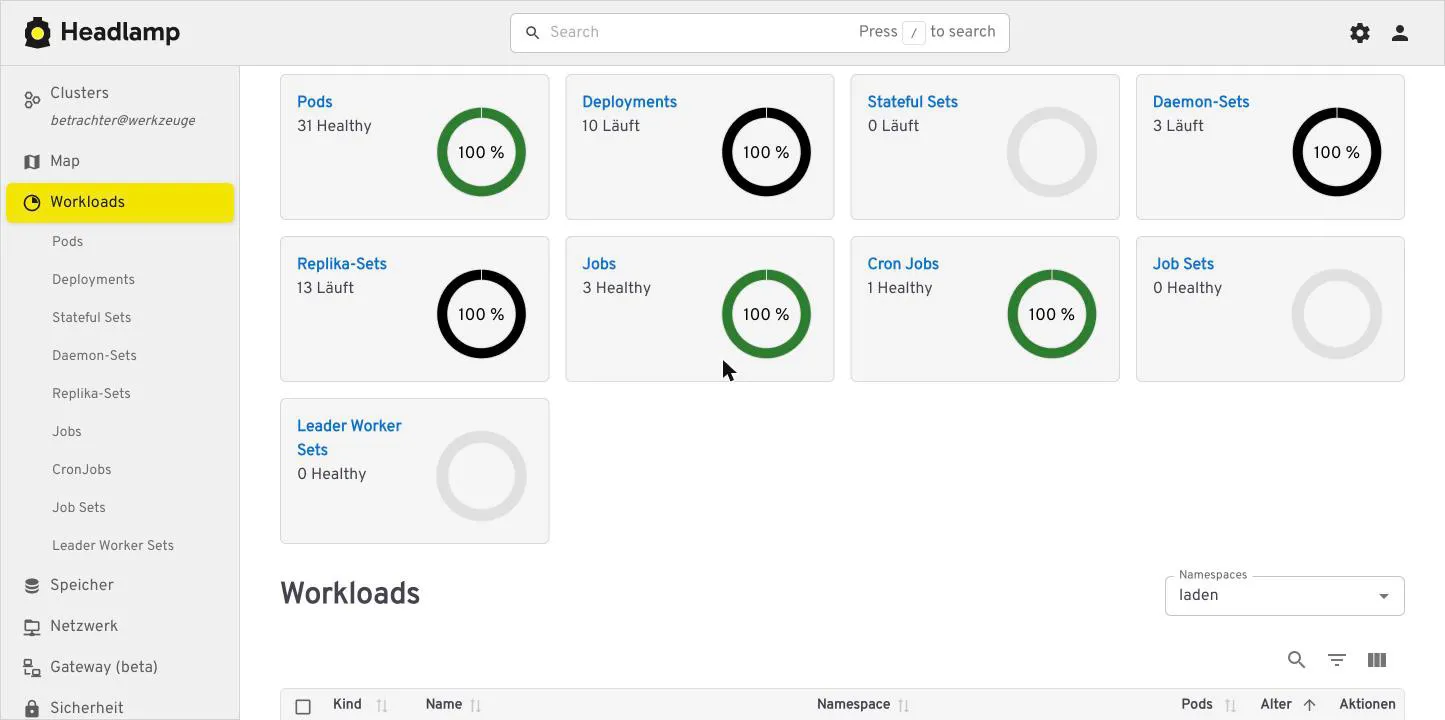
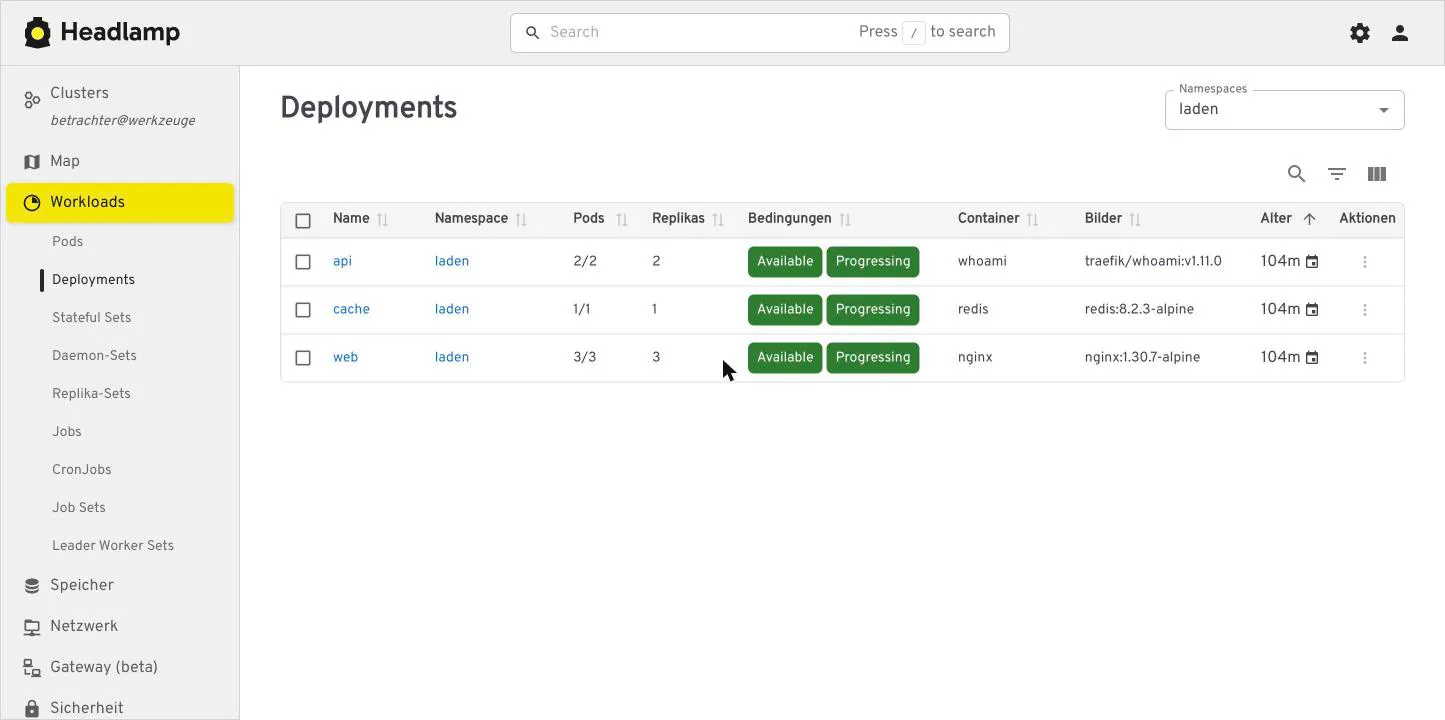
The tiles at the top count across all namespaces the account may read; the table below follows the namespace filter. Under Workloads → Deployments, you find the three Deployments with images and conditions:
Save your progress? Sign up for free
Drill 3: Map and Details
The Map draws the relationships between objects. In
the namespace laden, you first see only collapsed groups;
the number in the corner is the number of objects inside:
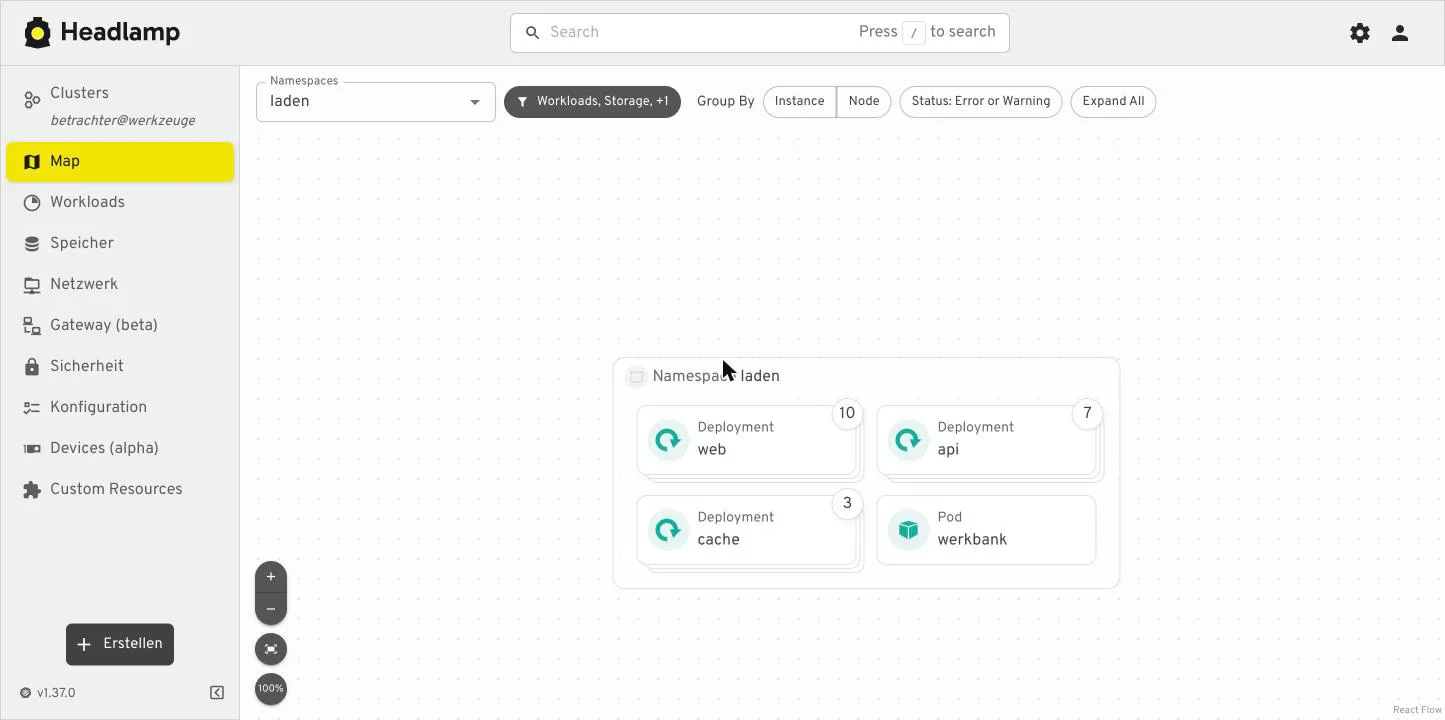
A click on Expand All expands all groups:
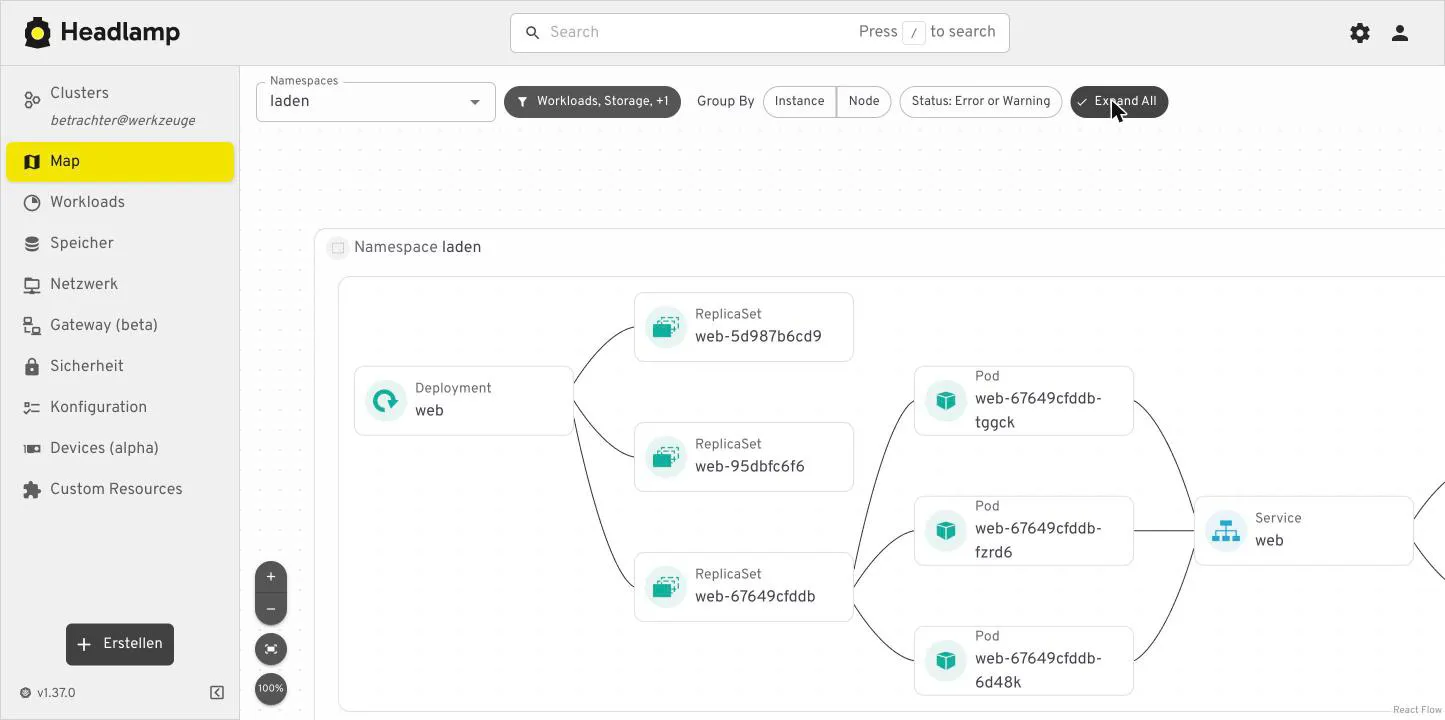
Do you notice something? web has three
ReplicaSets. Two of them are empty: these are the old revisions from Day
2, when you changed the pod template by patch and with Kustomize. Check
it with kubectl:
kubectl -n laden get rs -l app=web
kubectl -n laden rollout history deploy/web
Expected:
NAME             DESIRED   CURRENT   READY   AGE
web-5d987b6cd9   0         0         0       100m
web-67649cfddb   3         3         3       106m
web-95dbfc6f6    0         0         0       100m
deployment.apps/web
REVISION  CHANGE-CAUSE
2         <none>
3         <none>
4         <none>
The active ReplicaSet is the oldest one: revision 4 is the rollback to the original state, and Kubernetes reuses the old ReplicaSet for it instead of creating a new one. Revision 1 is missing from the list because it became revision 4.
The Map shows the same as kubectl tree from Day 4, just
with Services next to it. That is its real value: which Pods sit behind
which Service, without having to compare selectors in your head.
Now open Workloads → Deployments → web:
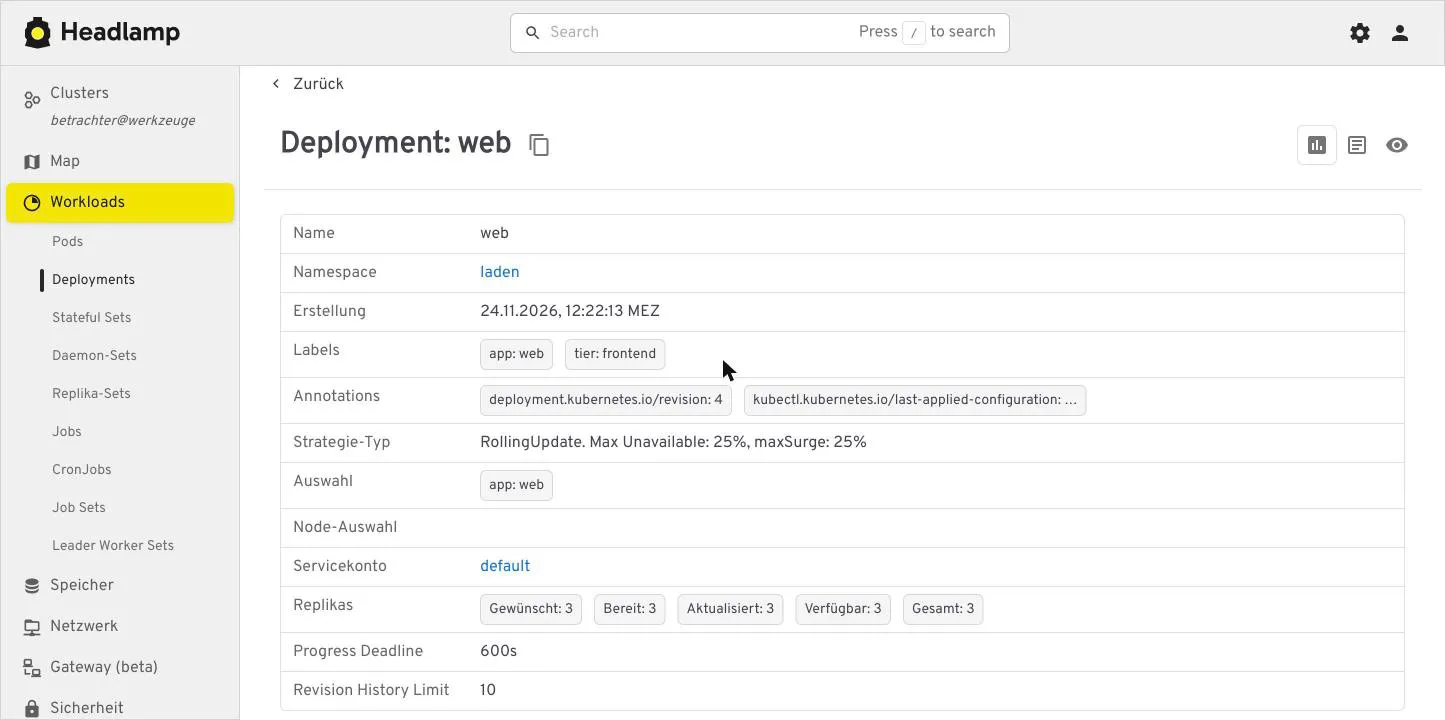
At the top right, you see only three icons: charts, events, view
YAML. Edit, Scale, Restart and Delete are missing.
Before displaying them, Headlamp asks the API server
(SelfSubjectAccessReview, the same as kubectl auth can-i)
and hides everything the account may not do. With the admin token, you
would see all buttons on the same page.
Save your progress? Sign up for free
Drill 4: What the Account May Not Do
Go to Configuration → Secrets (German UI:
“Konfiguration → Secrets”) in the namespace laden:
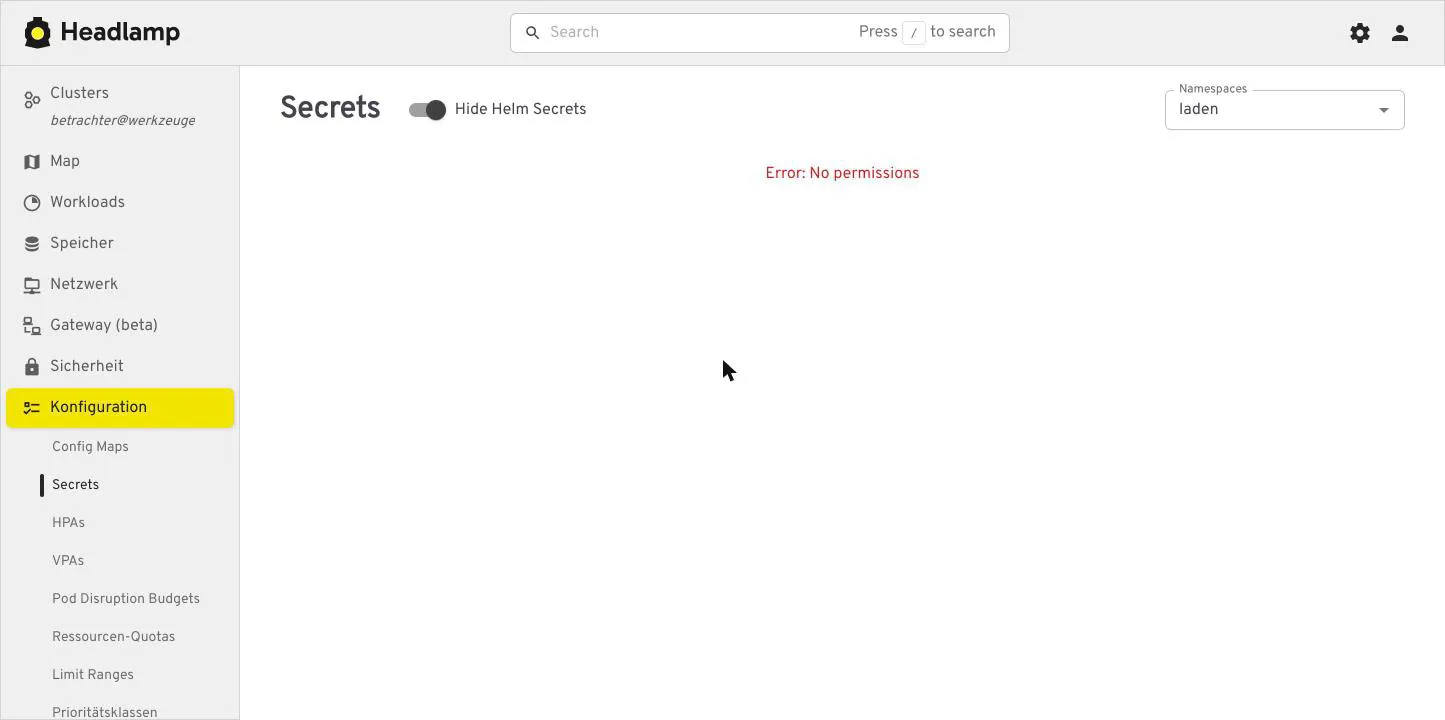
Error: No permissions. The ClusterRole view
deliberately contains no Secrets. This is not a Headlamp bug but exactly
what kubectl auth can-i get secrets -n laden answered with
no in Drill 2. The UI can never do more than the
account.
This also makes clear how to install the chart in a real cluster: without the admin binding.
helm upgrade headlamp headlamp/headlamp -n headlamp --version 0.46.0 --set clusterRoleBinding.create=false
kubectl get clusterrolebinding headlamp-admin
kubectl auth can-i "*" "*" --as=system:serviceaccount:headlamp:headlamp
Expected:
Error from server (NotFound): clusterrolebindings.rbac.authorization.k8s.io "headlamp-admin" not found
no
Headlamp itself needs no permissions to run in the cluster; it only passes the users’ tokens through. Whoever signs in brings their own permissions.
Save your progress? Sign up for free
Drill 5: Placing Freelens and the Dashboard
You install Freelens on your own machine, not in the
lab VM, because it is a desktop app. Packages for every platform are on
the release page
(github.com/freelensapp/freelens/releases), version
2.1.0:
| System | Package |
|---|---|
| macOS (Apple Silicon) | Freelens-2.1.0-macos-arm64.dmg or
brew install --cask freelens |
| Debian/Ubuntu | Freelens-2.1.0-linux-amd64.deb or
-linux-arm64.deb |
| other Linux | .AppImage or .rpm |
On start, Freelens reads ~/.kube/config and shows each
context as a cluster in the left bar. To see the lab, copy
betrachter.kubeconfig to your machine and add it in
Freelens via File → Add Cluster (or put it in a folder
that Freelens watches under Preferences → Kubernetes →
Kubeconfig Syncs).
For this to work from outside, the API server must be reachable from
your machine. kind only listens on 127.0.0.1 of the VM, so
you need an SSH tunnel to the port from SERVER:
ssh -N -L 45811:127.0.0.1:45811 ubuntu@<IP-der-VM>The kubeconfig already points to
https://127.0.0.1:45811, so the certificate matches.
Not photographed in the lab: Freelens runs on your machine, not in the VM. This chapter therefore shows no screenshots of Freelens; after Headlamp, the operation (clusters on the left, resources in the second bar, terminal at the bottom) is self-explanatory.
When to use what?
| Question | Answer |
|---|---|
| Many people, browser only, centrally operated | Headlamp in the cluster, sign-in by token or OIDC |
| One person, several clusters, local kubeconfig | Freelens or Headlamp as a desktop app |
| I just want a quick look in the terminal | k9s (Day 5) |
| Existing Kubernetes Dashboard | replace it; no more security updates |
Save your progress? Sign up for free
Exercise: What Does Which UI Show?
Answer each question first in Headlamp, then with kubectl, and compare:
- On which node does the Pod
werkbankrun? - Which Pods are behind the Service
api? - Which image does the CronJob
inventurin the namespacelageruse?
Solution
kubectl -n laden get pod werkbank -o jsonpath='{.spec.nodeName}{"\n"}'
kubectl -n laden get endpointslices -l kubernetes.io/service-name=api -o jsonpath='{.items[*].endpoints[*].targetRef.name}{"\n"}'
kubectl -n lager get cronjob inventur -o jsonpath='{.spec.jobTemplate.spec.template.spec.containers[0].image}{"\n"}'
Expected (node and Pod names will differ):
werkzeuge-worker2
api-7d5f77c79b-gjmtc api-7d5f77c79b-725kc
busybox:1.37.0
In Headlamp: 1. Pod detail page, field Node. 2. Map with
Expand All, edges to the Service api. 3.
Workloads → CronJobs, column Images (German UI:
“Bilder”). The comparison shows what the UI is good for: question 2 is a
single glance in the Map and a JSONPath expression in kubectl.
Save your progress? Sign up for free
Challenge
The team “Kasse” (checkout) is to use Headlamp and be allowed to
restart and scale Deployments in the namespace laden,
nothing else. Create a ServiceAccount, give it the right permissions and
generate a token for one work shift (8 hours). Check with
kubectl auth can-i before you hand out the token.
Solution
kubectl -n laden create serviceaccount kasse
kubectl -n laden create rolebinding kasse-edit --clusterrole=edit --serviceaccount=laden:kasse
kubectl auth can-i patch deployments -n laden --as=system:serviceaccount:laden:kasse
kubectl auth can-i patch deployments -n lager --as=system:serviceaccount:laden:kasse
kubectl auth can-i get secrets -n laden --as=system:serviceaccount:laden:kasse
kubectl auth can-i list namespaces --as=system:serviceaccount:laden:kasse
kubectl -n laden create token kasse --duration=8h
Expected (without the token):
serviceaccount/kasse created
rolebinding.rbac.authorization.k8s.io/kasse-edit created
yes
no
yes
Warning: resource 'namespaces' is not namespace scoped

no
Two findings that you only see by checking:
editmay read Secrets. Whoever grants “edit” also releases all passwords in the namespace, heredb-zugang. Ifkasseshould not have that, you need your own Role withget,list,patchondeploymentsanddeployments/scale, instead of the built-in ClusterRoleedit.kassemay not list namespaces. In Headlamp, the namespace selection then stays empty. Enterladenas an allowed namespace in Headlamp’s cluster settings; then the UI only queries there.
With the RoleBinding at namespace level, lager is
off-limits, no matter what the UI offers.
Save your progress? Sign up for free
Checkpoint
kubectl -n headlamp get deploy headlamp -o jsonpath='{.spec.template.spec.containers[0].image}{"\n"}'
kubectl get clusterrolebinding headlamp-admin betrachter-view --ignore-not-found -o name
docker ps --filter name=headlamp-lokal --format '{{.Names}} {{.Image}}'
Expected:
ghcr.io/headlamp-k8s/headlamp:v0.46.0
clusterrolebinding.rbac.authorization.k8s.io/betrachter-view
headlamp-lokal ghcr.io/headlamp-k8s/headlamp:v0.46.0
Only the read-only binding remains, no admin binding anymore.
Interview Note
- Kubernetes Dashboard in 2026? Archived, no security updates. According to the project, the successor is Headlamp.
- Who has which permissions in a web UI? Always the account whose token or kubeconfig it uses. A good UI hides actions the account may not perform, but the API server draws the line.
- Pitfall with Helm charts for UIs: default values
often bind cluster-admin. Read the values before use, here
clusterRoleBinding.create.
Enterprise Note
- In operations, you do not sign in to Headlamp with a copied token
but via OIDC with the company login; the groups from
the identity provider reach the cluster through RoleBindings. Headlamp
supports this through the chart values under
config.oidc. - The UI belongs behind an Ingress with TLS, never exposed to the network as a NodePort.
- Desktop apps like Freelens inherit the machine’s kubeconfig. If you have an admin context there, you also have it in the app. Use contexts with few permissions for everyday work, and the admin context only when needed (kubie from Day 3).